Showing posts with label Google Chrome. Show all posts

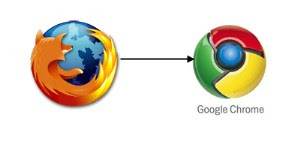
Learn to Import Mozilla Firefox Passwords in Google Chrome

Mozilla Firefox Passwords in Google Chrome
If you are using Mozilla Firefox and want to switch to using Google Chrome browser, you may not want to part with the passwords that you had saved in Firefox. Well, there is a way to import the passwords from Firefox to Google Chrome and you may contact the computer repair Chicago service for help. If you are confident on doing the import yourself, follow the instructions.

• Step 1: Double click on the Google Chrome icon for opening the browser.

• Step 2: On the upper right corner of the browser window, there is the “Wrench” icon, which the user must click.

• Step 3: Now select the option labeled “Options” or “Preferences” from the sub-menu.

• Step 4: Go to the section labeled “Personal Stuff” and click the button labeled “Import data from another browser”.

• Step 5: From the drop-down menu, the user must select “Mozilla Firefox” and then check the box next to “Saved Passwords”. The user may also choose the boxes available for “Browsing history”, “Search engines”, and “Favorite/Bookmarks” for importing all data from your Firefox usage.

• Step 6: Click on the button labeled “Import” for completing the process.

On a majority of computers, the import takes only a few seconds to happen. If you face any problems, you may contact an online technical support provider.


How to Disable New Tab Page in Google Chrome

New Tab Page in Google ChromeIf you have the latest version of Google Chrome, you will find that the web browser opens a new tab page for you whenever you start the browser. The new version does not give the homepage when you start the browser. The new tab page that opens gives the user a gallery of the most visited websites and also shows the various tabs that were closed recently.

If you are using the latest version and would prefer the homepage when the browser is opened instead of the new tab page, you may disable it. Disabling the new tab page is easy, but if you are not confident in doing the task yourself, you may contact the computer repair Atlanta service for assistance.

• Step 1: Start the Google Chrome Browser.

• Step 2: On the top right side there is a wrench like icon which you must click. Now choose “Options” from the drop down menu.

• Step 3: Choose the tab labeled “Basic” in the Google Chrome Options window.

• Step 4: Now choose the option that is labeled “Open this page” under the Home page category and type the web address for the homepage.

• Step 5: Finally click on the button called “Close” for closing the Google chrome Options window.

If there are any issues, you can contact an online technical support provider for help.

Try Creating Snowfall on Any Webpage in Google Chrome

Google ChromeEven if winter is not around, how about getting a feel of winter in summer? Wondering how this is possible? Well, in Google Chrome browser, you can choose to have the snowfall effect in all the web pages. The Snow extension in Google Chrome makes this possible to achieve; just follow some steps to make snowfall or contact the computer repair New York service for immediate help.

• Step 1: The user has to first visit the Snow extension page in the Google Chrome browser. Go to https://chrome.google.com/webstore/detail/kdcgdhlccojbnonmhcioigcdodakjcmh and install it for free by clicking the blue “Install” button.

• Step 2: When you get a prompt for confirmation, you have to click on “Install” to proceed.

• Step 3: After installation, you will find that the snowflakes keep falling on any webpage you open. This will give you a cool feel and you are going to love it.

If you want to have a better experience, make sure that you have a dark colored background on the main Google webpage. This will make the snowfall look heavenly. The snowflakes that keep falling are actually accumulated at the bottom edge of the Google Chrome browser. There are no options to be set on this extension, so the user does not have to think of settings. Enjoy the snow, and if you are having any problems, contact an online technical support service.
powered by Blogger | WordPress by Newwpthemes | Converted by BloggerTheme